Feel prepared. Remember more.
Visit Digest helps you prepare for a medical visit, record it with consent, turn it into an easier-to-read record, and keep useful follow-up questions in one place.
Start here: the main journey
Before the appointment
Use Visit Prep to describe what is happening. The AI asks focused follow-up questions and turns your answers into a symptom overview and questions for your doctor.
During the appointment
Use Record after consent. Add a quick note or bookmark when something important is discussed.
After the appointment
Review the transcript, summary, assessment, takeaways, action items, and medical-term explanations.
When you remember something later
Open Ask AI from the visit. Ask what was said, what comes next, or what to ask at a follow-up. Answers are grounded in that recorded visit.
1. Home screen and navigation
Bottom navigation Home · Visits · Record · Health · Settings
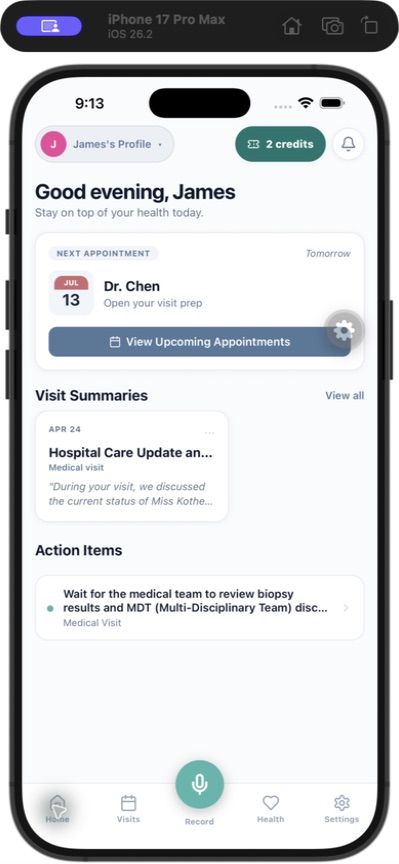
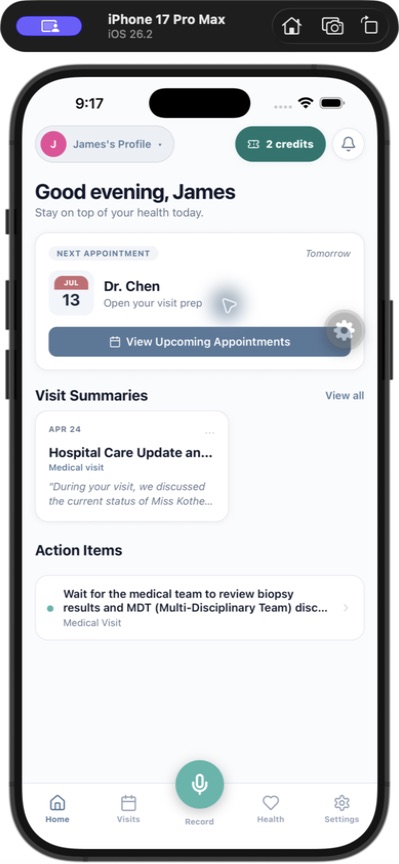
Home shows the active patient profile, credits or subscription status, the next appointment, recent visit summaries, and action items. Tap the profile pill at the top to switch patients.
2. Patient profiles: self, spouse, child, or caregiver
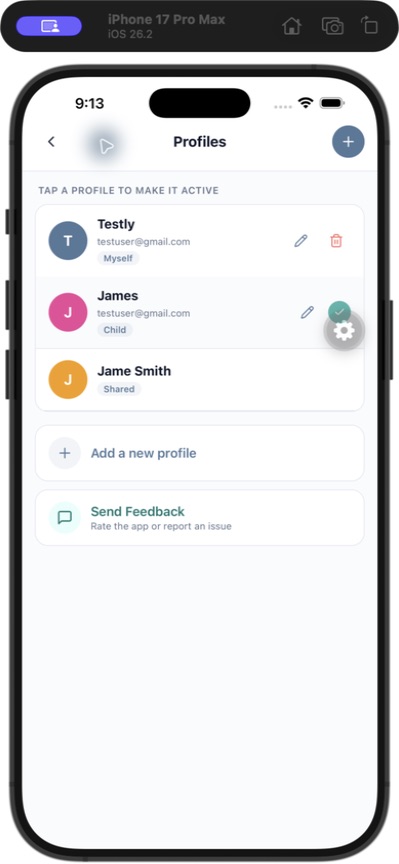
Profiles keep each person’s visits and health information separate while letting one account holder manage care for a family member. Use the profile switcher at the top of Home or go to Settings → Patient Profiles.
Create or switch profiles
Useful for caregivers A parent can manage a child’s records; a spouse or caregiver can keep a loved one’s information organised without mixing it with their own.
Edit a profile and change its colour
Open Settings → Patient Profiles, tap the pencil beside an owned profile, then edit the name, relationship, date of birth, blood type, allergies, chronic conditions, primary doctor, emergency contact, language, temperature unit, photo, or avatar colour. Tap Save when finished. Shared profiles are marked Shared and are managed by the owner.
3. Record a medical visit
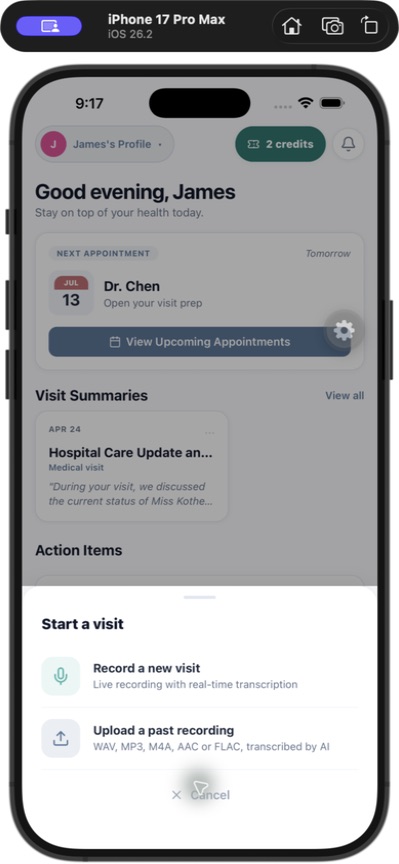
Start from Record or from an appointment prepared in Visit Prep.
4. Understand a completed visit
Open a visit from Visits → Past Visits. The visit detail screen is organised into tabs:
Summary
A patient-friendly explanation of what happened, with medical terms highlighted so you can tap to see a plain-language definition. In the next update, switch between a Brief and a Detailed summary, and tap Translate to read it in another language.
Assessment
Clinical reasoning, impressions, and evaluation details extracted from the visit.
Transcript
The conversation with speaker labels and approximate timestamps when available.
Action Items
Follow-ups, next steps, and tasks. Mark items complete and use reminders where available.
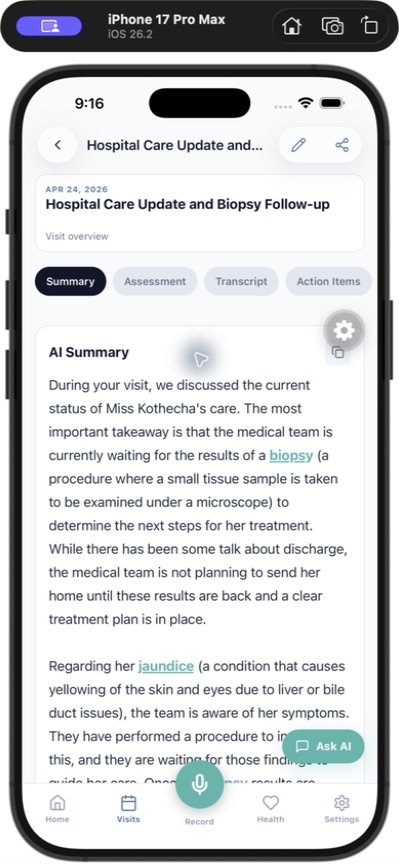
Assessment and key takeaways help you scan quickly; the transcript lets you verify the original conversation. You can copy important text from the summary or transcript.
5. Visit Prep: get better questions before you go
Visit Prep is designed to help you explain symptoms clearly and arrive with useful questions. It does not diagnose you or recommend treatment.
In the next update, Prepare for a visit starts with three choices: Something new is bothering me (the conversation below), Going back about something (questions from related past visits) and Ask about a topic (questions on any topic, using MedlinePlus.gov). The last two are free. See Help: Visit Prep.
Why the questions help: A concise timeline, symptom pattern, triggers, and change over time can help a clinician ask better follow-ups and narrow the possibilities they need to consider. The questions are prompts for a conversation, not a diagnosis.
6. Ask AI after the visit
Open a completed visit and tap Ask AI. This is useful when you remember part of a conversation but not the full detail, or when you want to turn the visit into follow-up questions.
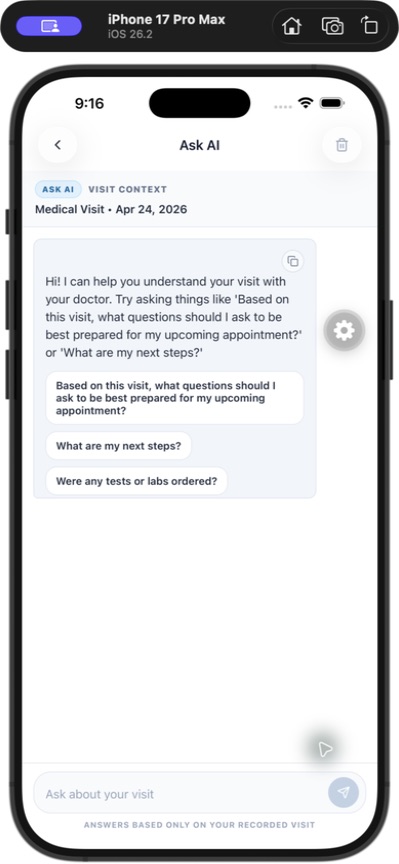
Use it to remember
Ask “What did we discuss about the biopsy?” or “What did the doctor say about the medication change?” The answer is based on the visit record.
Use it for follow-up
Ask “What should I ask at my next appointment?” or “What questions would help me understand the treatment plan?”
Use it for next steps
Ask whether tests, labs, referrals, or follow-ups were mentioned, then verify the answer against the transcript and your doctor’s instructions.
Use it when memory is incomplete
Describe the fragment you remember and ask the AI to find the related part of the visit. Timestamp-style references can help you jump to the transcript.
7. Sharing: profile access, visit-only access, and recipients
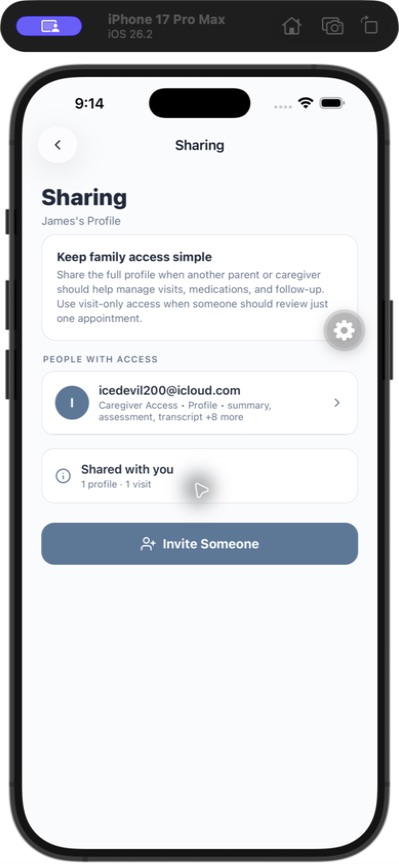
Visit Digest gives you control over who can see or help with a profile. Sharing is optional and should be limited to people you trust.
Three ways to share
Share a full profile
Use Settings → Manage Shared Access → Invite Someone when a spouse, parent, or caregiver needs an ongoing view of visits, medications, and follow-up.
Share selected visits
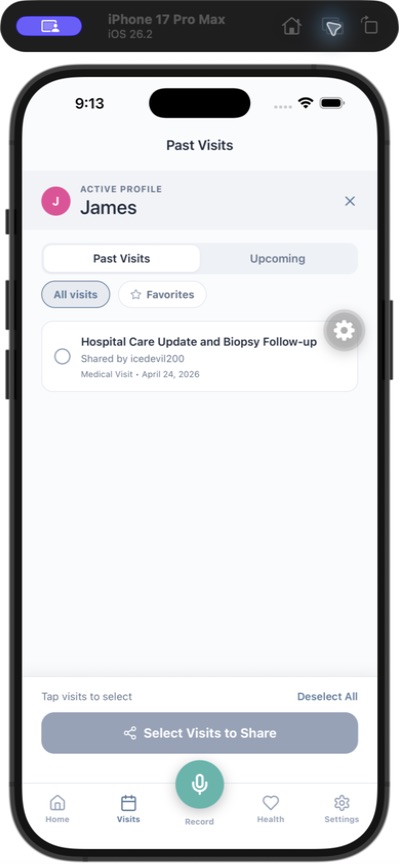
From Visits, tap the share icon, select one or more visits, then choose the recipient and permissions. This is useful when someone only needs one appointment.
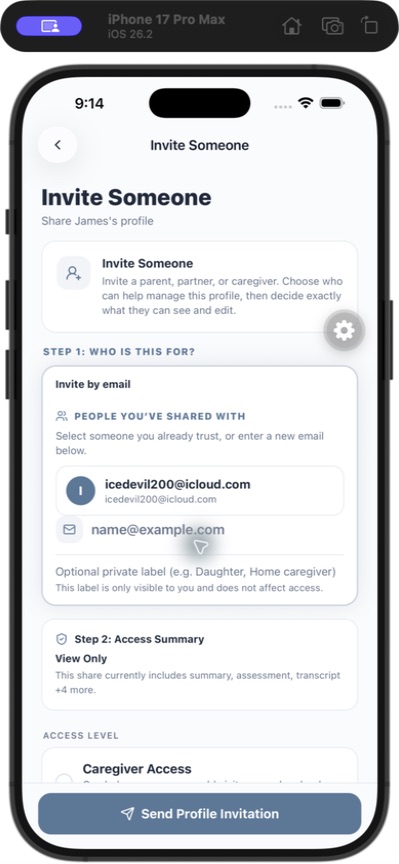
Invite by email
Select someone you have shared with before or enter a new email. Add a private label such as “Daughter” or “Home caregiver”; the label is visible only to you.
Auto-share future visits
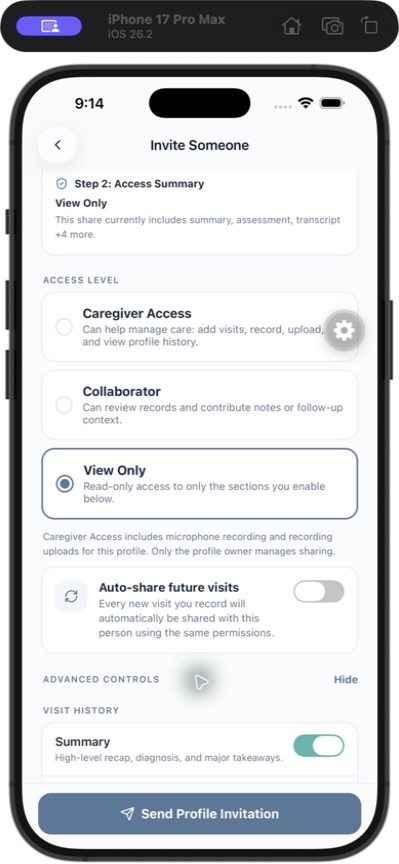
When inviting someone, turn on Auto-share future visits to apply the same permissions to new visits. You can manage or revoke access later.
Choose the access level
- Caregiver Access: can help manage care, add visits, record, upload, and view profile history.
- Collaborator: can review records and contribute notes or follow-up context.
- View Only: read-only access to only the sections you enable.
Advanced controls
You can independently allow or block Summary, Assessment, Transcript, Action Items, My Notes, Medications, Symptoms, Health Facts, Appointments, Create Visits, Record Audio, Upload Recordings, and Manage Sharing. Start with the smallest amount of access that will do the job.
8. Health information and settings
Health tab
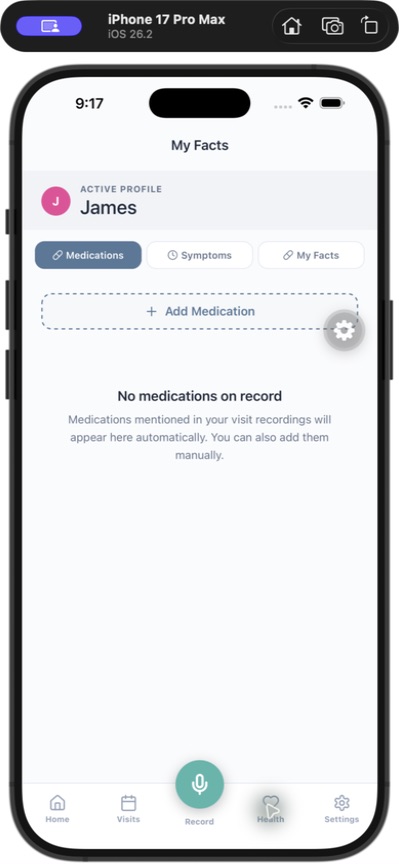
Use Health to keep medications and symptoms connected to the active profile. Add medicine names, dosage, frequency, purpose, instructions, prescriber, side effects, and dates. Track symptoms with severity, duration, triggers, vital signs, notes, and whether they have resolved.
Settings
- Account Identity: edit your account details.
- Patient Profiles: create, switch, and edit profiles.
- Language: choose a supported language.
- Appointment Reminders: turn reminders on or off.
- Biometric Lock: protect the app with Face ID, Touch ID, or device authentication when available.
- Cloud Sync: sync structured records for backup and access across devices.
- Export All Data: create a copy of your records.
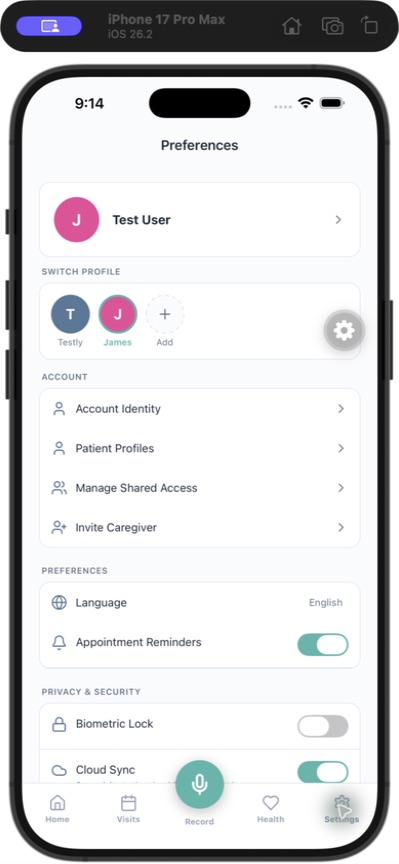
To change an avatar colour, edit the profile and choose a new colour swatch. To change the app language or privacy settings, use Settings. Changes apply to the account or active profile according to the screen you are editing.
9. Recording, AI, and privacy reminders
- Always get consent before recording a medical visit, and follow local laws and clinic rules.
- Visit Digest is not an EHR and does not send your records to your doctor or clinic automatically.
- AI summaries, assessments, Visit Prep questions, and Ask AI answers can contain errors. Verify important details.
- Do not use the app to decide whether an emergency is happening. Call local emergency services or contact a healthcare professional for urgent concerns.
- Use profile-level sharing for an ongoing care relationship and visit-only sharing for a narrow need.
- Turn on biometric lock if other people may access your device.
10. Frequently asked questions
Can Visit Digest diagnose me?
No. Visit Prep asks clarifying questions and organises what you report; Ask AI explains or retrieves information from a recorded visit. Neither replaces a clinician.
What if I only remember part of the visit?
Open the visit and use Ask AI to ask about the fragment you remember. Then open the transcript to verify the answer.
Can I share only one appointment?
Yes. Use the share icon in Visits, select the appointment, and choose visit-level access.
Can a caregiver record for a child or spouse?
Yes, if the profile owner grants the needed capability. Caregiver Access can include adding visits, recording, uploading, and viewing history.
Why do I see “Pro required” or a limit message?
The free plan includes a limited allowance of recordings, Visit Prep and Ask AI questions. Once it’s used, you can buy a single upload, upgrade to Pro, or carry on with the rest of the app.
Can Visit Digest work without uploading my recording?
In the next update, yes, for Pro members on an iPhone with iOS 27 and Apple Intelligence. Turn on On-device processing in Settings to transcribe and summarise on the phone. Those visits stay on the phone and are never synced. See Help: Private mode.
How do I delete information?
Use the delete controls for the relevant profile or visit. Settings also includes Delete All Data; treat that as permanent and confirm carefully.