Help & frequently asked questions
A little preparation.
A clearer record.
From your first recording to keeping a caregiver in the loop: learn how to make Visit Digest part of your care routine.
No matching topics. Try a shorter search, such as “audio”, “reminder”, or “share”, or choose Clear.
Start here
Visit Digest brings appointment preparation, visit audio, summaries, medications, symptoms, and trusted helpers together. Start by selecting the right patient profile: the profile shown in the app determines whose information you are viewing or adding.
Your first visit, from beginning to end
- Sign in and create or select a patient profile.
- Optionally create a Visit Prep appointment and finish its prep conversation.
- Record with permission, choose an existing audio file, or share a Voice Memo into Visit Digest.
- Let transcription and analysis finish, then review the summary and check important details against the transcript.
- Review automatically identified medications and symptoms. Add missing information and set any reminders you want.
- Share selected visits or profile access with a trusted person.
What’s new
These arrive in the update after 1.0.7. Items marked Next update in this guide describe them; until your app has the update, you won’t see them yet.
- Private mode: on an iPhone with iOS 27 and Apple Intelligence, Pro members can transcribe and summarise recordings on the phone, with nothing uploaded. See Private mode.
- Speaker labels in Private mode: on-device transcripts are split by speaker, on the phone.
- Brief and Detailed summaries: a short 3–5 sentence version alongside the full summary. See your completed visit.
- Translate a summary into any of the app’s 10 languages. Each translation is saved with the visit, so switching back and forth is instant, even offline.
- Three ways to prepare: Visit Prep now offers “Something new is bothering me”, “Going back about something” and “Ask about a topic”. The last two are free. See Visit Prep.
- Fixes without waiting for the App Store: small fixes now download in the background and apply the next time you open the app.
- Fixes: a clear message when you reach the recording limit, the rating request no longer appears after every summary, and visits stored only on your phone are never deleted if the phone’s database can’t be opened.
1 · Record a live visit
Center microphone → Record a new visit → Recording consent
Choose this when you want Visit Digest to capture the conversation as it happens. The recording screen shows a timer and sound waveform; transcription and AI analysis run after you finish recording.
- Select the patient profile. If you prepared this appointment, open its prep and tap Use this prepared visit for recording so the checklist is attached.
- Open the recording consent screen. Ask the people involved for permission and follow the clinic’s recording requirements. Continue with My Doctor Agrees — Start Recording only when you have permission. With linked prep, No Consent - Review Prepared Questions lets you use your questions without recording.
- Allow microphone access when prompted. Position the phone so voices are clear and the microphone is unobstructed.
- Check that the timer advances and the waveform responds. Tap the title to rename the visit if useful. Use Quick note, Bookmark, and your prep checklist during the conversation.
- When finished, press and hold the stop control until the recording ends. A brief tap is not the same as holding it. Follow the processing screen to the completed visit.
During recording
- Quick note: opens Visit Notes while recording continues. The panel shows the recording status and time. Type what you want to remember, then close the panel to return. These notes are included as context for the AI summary and saved with the visit.
- Bookmark: marks the current moment without typing. The count increases and a marker appears on the waveform. Later, use the bookmark filter in the transcript to find nearby lines.
- Prepared questions: tap the card near the top to tick off questions as you ask them. See the checklist walkthrough.
- Background recording: the app supports recording while you briefly leave the app or lock the screen. Return and check the status. Avoid force-closing the app during capture.
The current recording controls are Bookmark, hold-to-stop, and Quick note. Do not look for a required transcription-mode picker or assume a scrolling live transcript is available.
What if recording will not start or is interrupted?
Check the active profile and its recording permission, microphone access in device Settings, available storage, and any plan message. The recorder checks for more than 500 MB of free space and caps a recording at 120 minutes, with earlier duration warnings. If the app offers recovery of a saved recording, use that flow rather than recording the same visit again.
2 · Import from device or cloud storage
Center microphone → Upload a past recording
Use this for audio you already have in Files or another storage provider. The app’s file picker can show cloud locations that your phone’s file browser exposes; Visit Digest does not ask for a separate cloud-storage connection here.
- First select the patient profile that should own the visit.
- Choose Upload a past recording, then tap the audio-file selection area.
- In the system file picker, browse local storage or an available cloud provider. On iPhone this can include On My iPhone and iCloud Drive; other providers appear when installed, signed in, and enabled in Files. On Android, use the locations offered by the document picker.
- Select one audio file. For cloud-only files, let the provider download it. Confirm the filename in Visit Digest; use the X if you need to select a different file.
- Enter or check the doctor, original visit date, optional specialty, and optional facility. The date defaults to today, so change it for an older appointment.
- Tap Continue to transcription. Keep an internet connection while upload, transcription, and analysis finish. Review the resulting visit just as you would a live recording.
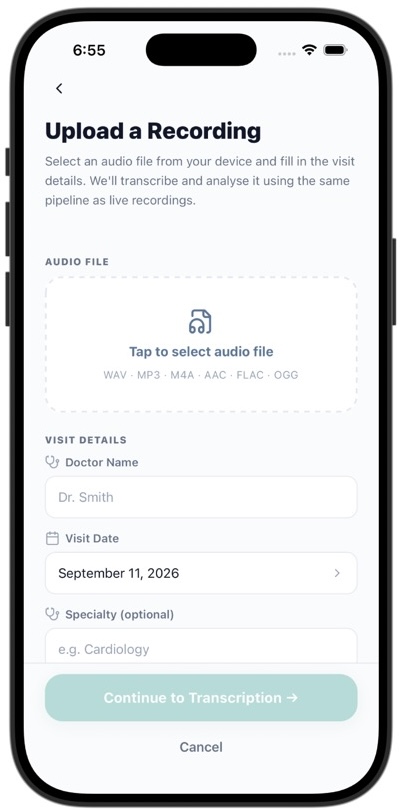
The picker lists WAV, MP3, M4A, AAC, FLAC, and OGG. Actual processing also depends on the audio being readable and containing usable speech. A file extension alone does not guarantee successful transcription.
My cloud folder or recording is missing. What should I do?
Open the provider’s app or the system file browser, sign in if needed, and make the file available locally. Then return to Visit Digest and choose it again. If the provider cannot expose the file to the picker, save an audio copy into Files or device storage first. Select an audio file rather than a webpage link, folder, or transcript document.
3 · Import directly from Voice Memos
Voice Memos → Select recording → Share → Visit Digest
The iPhone menu is called the share sheet. The app’s receiving feature is a share extension; “App Group” refers to the underlying file handoff, not a menu you need to find.
- Open Visit Digest first, sign in, and select the correct patient profile. The current main version uses the active profile; it does not show a profile picker during this import.
- Open Voice Memos and select the recording. Open its More / three-dot menu if needed and choose Share.
- Choose Visit Digest in the app row of the share sheet. If it is not visible, look under More. Share one recording at a time.
- Visit Digest opens, receives the audio, and stops on Review. The visit date is taken from the recording itself. Add the doctor’s name (required) and any other details, then continue to start transcription.
- Review the visit after processing, and use the visit’s edit control to correct the title, clinician, or facility if needed.
If Visit Digest is already recording, the shared file waits rather than interrupting the live session. If sign-in or onboarding is unfinished, finish it before expecting processing to begin. Wait for one import to finish before sharing another file.
Visit Digest does not appear in the share sheet.
Check More in the share sheet and confirm that you are sharing the audio recording itself. This requires the installed native app with its share extension; it is not a web-browser import. As a fallback, use Voice Memos’ share sheet to save the recording to Files, then use Upload a past recording in Visit Digest.
I shared audio but nothing appeared.
Return to Visit Digest, finish signing in, verify the active profile and upload permission, and check whether a recording or another processing job is still open. Follow any usage-limit or import error message. After resolving it, reopen the app and check Visits before sharing the same audio again.
Processing & your completed visit
All three audio paths converge on transcription and AI analysis. The processing screen reports progress and may let you add or refine visit details while you wait. Keep the original recording until you have checked the result.
| Visit section | How to use it |
|---|---|
| Summary | Read the plain-language recap. Use Copy where offered. Tap highlighted medical terms for explanations. Next update Switch between Brief (3–5 sentences: what was found, what changed, what to do next) and Detailed; the app remembers your choice. Visits processed before the update have only the detailed summary, so they show no switch. Tap Translate to read the summary in another language; each translation is saved with the visit. |
| Assessment | Review key takeaways and expandable symptoms, conditions, medications, treatments, and tests. Open items for context. |
| Transcript | Search the conversation, inspect speaker labels and timestamps, and play available local audio. Rename a speaker, for example “Speaker 1” to “Dr Lee”; the new name shows on every line from that speaker. Use the bookmark filter to focus on marked moments. Timestamps are approximate. |
| Action Items | Review follow-up tasks, due dates, urgency, and details. Tick completed items; tap a bell to get a reminder or add the task to your calendar. |
| My Notes | Read your recording notes, then edit and Save additional context when your access allows it. |
Find and maintain visits
Open Visits, choose past visits, and switch between All and Favorites. Open a visit to see its full record. On an owned visit, use the pencil to correct metadata and the star to mark a favorite. In the visit list, swipe a row to reveal Favorite and Delete where permitted. Deleting a visit removes it from history for everyone who has access, as the confirmation explains. Shared visits show only permitted sections and controls.
Action-item reminders
Tap the bell beside a task to choose a date and time. It starts at 9:00 on the task’s suggested due date, or at the next 9:00 if there is no due date or it has passed. Then choose Remind me for a Visit Digest notification (allow notifications if asked), or Add to Calendar to open your calendar with the task filled in; the calendar event links back to the visit’s action items. These are one-off follow-up reminders, separate from the daily medication reminders.
Recover a failed or incomplete result
If processing fails, read the error and use the retry option after resolving connectivity or access issues. The app retries some temporary failures automatically. If the original audio is missing, use Upload original recording where offered. A retry needs a saved transcript or audio; it cannot recreate a missing conversation from nothing.
Translate a summary Next update
On the Summary tab, tap Translate and choose a language. The first translation into a language takes a moment and needs internet access. After that it’s saved with the visit (and synced, encrypted, with Cloud Sync on), so switching languages, or between Brief and Detailed in a translation, is instant and works offline. Medication names, doses and numbers are kept exactly as they are. Only the summary is translated; key takeaways and action items stay in the original language. If a visit is processed again, its translations are cleared so an out-of-date one never shows. Owners and people with Caregiver Access can add translations; View Only viewers who can see the summary can read saved ones.
Private mode: process on this phone Next update
Settings → On-device processing
Private mode transcribes and summarises new recordings on your iPhone, using Apple’s on-device speech recognition and the Apple Intelligence on-device model. No audio is uploaded. Cloud processing is usually more accurate and has more features; Private mode is for when you want everything to stay on the phone.
What you need
- A Pro plan.
- iOS 27 or later, on an iPhone that supports Apple Intelligence, with Apple Intelligence turned on in iOS Settings.
- An app language the on-device model supports.
If something is missing, the On-device processing row in Settings says what, for example “Needs iOS 27 or later” or “On-device model is still downloading”. Turning it on first downloads the speech files and a small speaker-label model, with progress shown. Stay on Wi-Fi until it finishes.
What stays on the phone
- Visits recorded with Private mode on are badged On device. They are never synced or backed up, even with Cloud Sync on, and they aren’t included in sharing or in Export All Data.
- Symptoms and medication changes that come from a private visit also stay on the phone.
- If you delete the app or lose the phone, private visits are gone for good. Keep the original recording somewhere safe if you may need it again.
- Ask AI and Visit Prep always ask before sending a private visit to the cloud AI. Visit Prep asks once per visit and remembers your answer.
Speaker labels
Private-mode transcripts are split by speaker on the phone. Speakers start as “Speaker 1”, “Speaker 2” and so on, and are renamed Doctor, Nurse or Patient only when the conversation makes the role clear. Rename any speaker in the Transcript tab. Two people with very similar voices may be merged, and someone who speaks very little may be counted with another speaker. A recording with only one voice is usually split into two speakers; rename one to the other’s name to merge them.
Processing on the phone
Keep the app open while a private visit is processed; the screen stays awake. Longer visits take longer. If the app closes partway, processing picks up where it stopped instead of starting again.
If your Pro plan ends
New recordings go back to cloud processing, and existing private visits stay on the phone. Being offline never counts as your plan ending, so a private recording is never sent to the cloud just because you have no signal.
Visit Prep: arrive with useful questions
Visit Prep helps you organize what has changed, explain symptoms clearly, and remember your priorities during a short appointment. It turns your descriptions into an overview, useful details, and questions you can discuss with your clinician.
Choose how to prepare Next update
Prepare for a visit opens on three choices. Every choice uses the profile’s details, such as age (in days, weeks or months for babies), allergies, conditions, current medicines and recent visits, so a caregiver preparing for a child gets questions for the child’s age.
| Choice | Use it when | Allowance |
|---|---|---|
| Something new is bothering me | You have a new symptom or problem. A short conversation turns what you describe into an overview and questions, as in the steps below. If something sounds urgent, it reminds you when to seek emergency care. | Uses your Visit Prep allowance |
| Going back about something | It’s a follow-up. Questions are built from up to 5 related past visits: the same doctor or specialty, ongoing medicines, matching symptoms and the most recent visits. The visits used show as chips; remove one to change the questions. You need at least one past visit with a summary. | Free |
| Ask about a topic | You want questions on any topic, for any age, such as “3-month check-up”, “starting statins” or “first rheumatology visit”. It uses reference text from MedlinePlus.gov, which is credited on the appointment. | Free |
The steps below follow the “Something new” conversation. The other two choices skip the conversation and produce questions directly.
- Select the profile and open Visit Prep from Home or Record, or create an upcoming appointment from Visits.
- Set the appointment date and time, doctor, and optional specialty and facility. Save the appointment and continue to the prep conversation.
- Explain the reason for your visit in your own words. Answer the AI’s follow-up questions about your experience, such as timing, severity, patterns, or what has changed.
- Finish the conversation so a prep summary is generated. Review the symptom overview, key details, and suggested doctor questions. Expand a question’s explanation of why it matters when available.
- Add your own questions under Questions you prepared using the text field and plus button. Hide suggestions that do not fit. You can reopen the conversation to refine your preparation.
- At the appointment, open this prep and tap Use this prepared visit for recording. Complete recording consent to carry the questions into the session.
Finish the prep conversation first. If the prepared-visit recording button takes you back to the conversation section, the prep summary is not ready yet. Open AI Visit Prep and finish it. You can use the ordinary live-recording route when you want to record without linked prep.
Appointment details can be edited with the pencil. Deleting an upcoming appointment also removes its prep notes, so use the delete control only when you no longer need that preparation.
Use prepared questions while recording
With a linked prep, a card near the top of the recording screen says, for example, 3 questions for your doctor, with an asked count. Tap it to open Your prep without stopping the recording.
- Check the Symptoms to mention chips to remember the topics you prepared.
- Under Questions for your doctor, tap a question’s circle after you have asked it. It gains a checkmark and the asked count updates.
- Tap again if you checked it by mistake. Close the sheet to return to the recording controls; completed states are saved to the appointment.
- Use the full-prep link if you need more context. Hidden questions do not appear in the recording checklist.
Interactive example · fictional questions, not a screenshot
Your prep
0 of 3 asked · tap to tick off
Symptoms to mention
FatigueQuestions for your doctor
This example demonstrates the checklist. It does not record audio or change your app.
Why are my prepared questions missing during recording?
Make sure you started through the correct prepared appointment, completed its prep conversation, and have visible questions or symptoms. Starting an unrelated new recording does not automatically attach a different appointment’s checklist.
Add & manage medications
Health → Medications → +
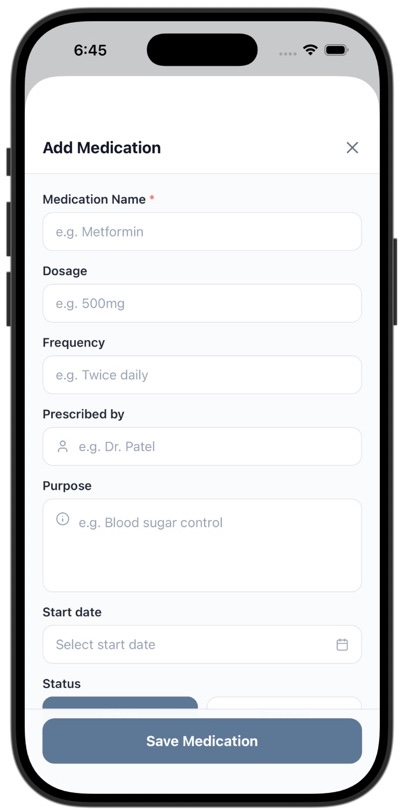
- Check the active profile, then tap the plus button / Add Medication.
- Enter the medication name. Use suggestions to help find the spelling, or enter the name you need.
- Add dosage, frequency, prescriber, purpose, and start date as appropriate. These fields describe the record; frequency text does not schedule notifications.
- Choose Active or Stopped. For a stopped medication, add an end date when appropriate.
- Tap Save Medication. Open the medication from the list to review and edit it later. Use Edit to change its Active / Stopped status, or Delete Medication to remove its saved entry.
Keep the list consistent with your clinician’s instructions. Updating a medication’s status in Visit Digest is recordkeeping, not a recommendation to start or stop taking it.
Medications identified automatically
After processing a visit, Visit Digest shows medication mentions extracted from the conversation in Health. AI entries are combined across visits by medication name; saved manual entries with the same name take precedence. Check whether a mention represents a current medicine, a stopped medicine, or something merely discussed.
Tap an AI medication to open Edit AI Medication, review and correct the details, then save it as a managed entry. Medications found in a visit also appear in the reminder picker, marked “Found in a visit”; saving a reminder for one adds it to your medication list, so check its name and dose there.
If a medication is missing, add it manually. If AI got the name or dose wrong, verify the original conversation and correct the saved record. Do not rely on automatic extraction as a complete medication reconciliation.
Set medication reminders
Health → Medications → Bell → Add medication reminder
- Save at least one active medication for the selected profile. If it is only an AI mention, open it and save a reviewed entry first.
- Tap the bell in Medications, then Add medication reminder. You can also enter the reminder flow from a medication’s detail screen.
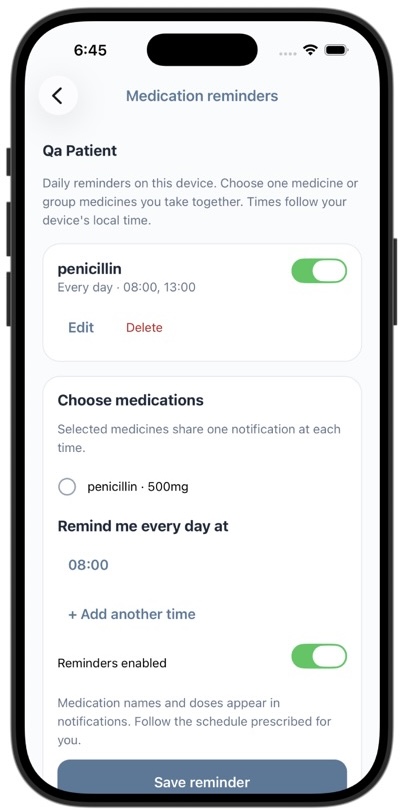
- Select one medicine, or group several medicines that you take at the same time. A group produces one notification at each selected time.
- Tap the displayed time to change it. Use + Add another time for additional daily times; remove times you no longer need. On iPhone, tap Done after adjusting the time picker.
- Leave Reminders enabled on and tap Save reminder. Allow notifications if prompted, then confirm the schedule appears in the list.
Edit, pause, or remove a schedule
Return to the bell screen. Use Edit to change medicines or times, the group switch to pause or resume it, and Delete to remove the schedule. Deleting a reminder does not delete the medications. When a saved medication is changed, stopped, or deleted, the app reconciles its reminders; review the schedule if it shows a reminder-needs-attention message.
- Daily only: these are daily schedules, not an every-other-day, weekly, or as-needed dosing engine.
- Device local time: times follow the device’s local time. Review schedules when traveling or changing time zones.
- Per device: sharing a medication or turning on Cloud Sync does not create the same schedule on someone else’s phone. Each person sets reminders on their own device.
- Notifications: enable Settings → Notifications and reminders in Visit Digest and allow notifications in device Settings. Turning the app setting off pauses medication reminders.
- Lock-screen content: notifications include the profile name, medicine names, and doses. Adjust device notification previews if desired.
Why did no medication notification arrive?
Check the correct profile, active medication selection, saved times, group enabled switch, Visit Digest’s notification setting, and device notification permission. Review device Focus / Do Not Disturb settings and local time. Signing out stops scheduling for that account. Reopen the app after changing permissions. If the app reports too many reminder times, remove unused times and save again.
Log & review symptoms
Health → Symptoms → +
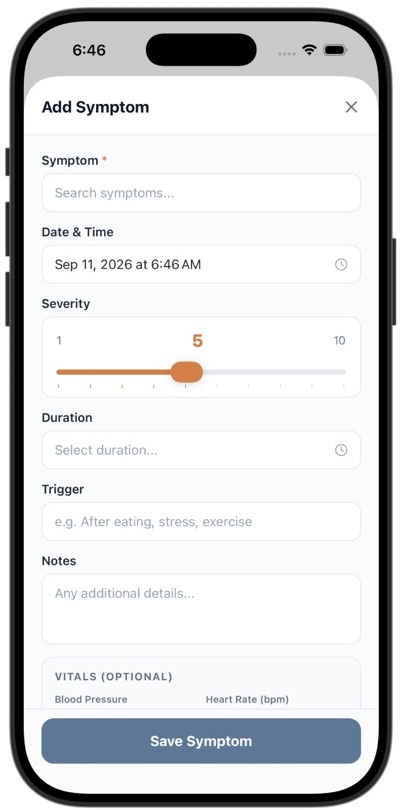
- Select the profile and open Symptoms. Tap Add Symptom.
- Search for or enter the symptom name. Set the date and time when it occurred.
- Choose a severity from 1 to 10, add duration, and describe a trigger or notes if useful. The symptom is saved as Mild (1–3), Moderate (4–6) or Severe (7–10); the slider shows which as you move it.
- Optionally enter blood pressure, heart rate, temperature, or oxygen saturation. Use the displayed units; the profile’s temperature preference controls the temperature unit.
- Tap Save Symptom. Review the dated timeline, open an entry for detail, and use Edit to correct it. Add a new entry for a new occurrence rather than overwriting the previous episode.
Symptoms identified automatically
When a visit finishes analysis, named symptoms discussed in the transcript can be added to the timeline with a From visit source and a link to the visit. The app attempts to avoid adding the same named symptom twice for the same visit during retries and skips vague unnamed findings.
Review automatically added date, severity, duration, and context. The automatic entry’s date can reflect processing time rather than the symptom’s true onset; edit it when necessary. The symptom may have been mentioned historically, so verify what was actually said. Add missing episodes manually, and delete incorrect entries only after checking their source.
My Facts, alongside Medications and Symptoms, shows profile health facts such as allergies, chronic conditions, blood type, doctor, and emergency contact. Use Edit Profile to maintain these separately from the symptom timeline.
Ask AI about a completed visit
Open visit → Ask AI
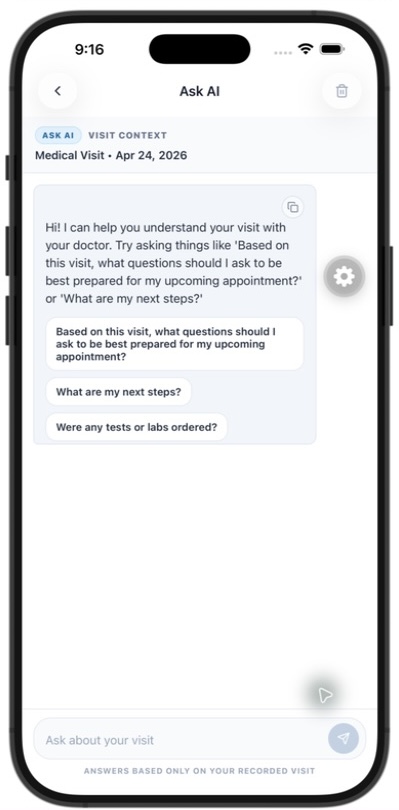
Use Ask AI to find or explain information in that visit: “What were my next steps?”, “Were tests or labs ordered?”, or “What should I ask at my follow-up?” It uses the visit transcript and related information as context.
- Open a processed visit with a transcript, then tap Ask AI.
- Choose a suggested prompt or type a specific question. Ask a follow-up if you need clarification.
- Where an answer provides a timestamp reference, use it to return to the related transcript passage. Check the original wording for important decisions.
- Use Copy to keep an answer where offered. The clear-chat / trash control removes the saved conversation when confirmed; it is separate from deleting the visit.
Ask AI depends on transcript access and your plan or usage allowance. If it is unavailable on a shared visit, ask the owner to check the Transcript permission. Answers are a memory aid for that visit and may be incomplete or mistaken.
Share with family & caregivers
Settings → Manage Shared Access
Enable Cloud Sync to use family sharing. Choose the profile you intend to share before starting. Sharing uses the recipient’s Visit Digest account email; check it carefully, especially when a person uses Apple sign-in with a private relay address.
Choose the scope first
| Share type | Use it for | What to check |
|---|---|---|
| Selected visit(s) | A particular appointment or a few records. | Only those visits, View Only, with the visit sections you choose. New visits are never added, and it doesn’t include medications, symptoms, or recording. |
| Profile | An ongoing care relationship. | Every visit, past and new, with Caregiver Access or View Only. New visits appear for them automatically. |
| Exported copy | Sending a file or text through another app. | A copy does not stay in sync and cannot be withdrawn by revoking Visit Digest access. |
Share one or several visits
- For one visit, open it and tap Share visit. For multiple visits, use the share-selection control in Visits, then select the records you want to include.
- Choose a previous recipient or enter the recipient’s account email. Add an optional private relationship label to help you recognize the person.
- Choose which visit sections they can see. Selected visits are always shared View Only; keep at least one section on.
- Only these visits are shared; new ones aren’t. To share every visit, including new ones, share the profile instead.
- Review the recipient and selections, then send the visit invitation. Check the sharing screen afterward for the resulting access or pending invitation.
Share a profile
- Open Settings → Manage Shared Access → Invite Someone (or Invite Caregiver in Settings).
- Choose the recipient by email, a previous recipient, or scanning their QR code.
- Choose Caregiver Access (everything) or View Only. For View Only, open Advanced Controls to switch on more sections than the summary.
- A profile share covers every visit, including new ones; there’s nothing extra to switch on.
- Tap Send Profile Invitation. Access for an existing account may be granted immediately; a new account invitation remains pending until the recipient signs up with the matching email.
The optional relationship label is for your organization, such as “Daughter” or “Care coordinator”; it does not grant permissions. A queued invitation email does not guarantee that the recipient has read it.
Customize access & manage recipients
Two access levels
- Caregiver Access: everything. Every visit section, medications, symptoms, health facts, appointments, and adding, recording and uploading visits, for every visit including new ones. There are no section switches for this level. Only you, the owner, can change who the profile is shared with.
- View Only: starts with the visit summary only. Switch on more sections in Advanced Controls, such as the transcript, action items or medications. On a profile share it covers every visit, including new ones, within those sections.
Visits shared on their own (not the whole profile) are always View Only, with just the visit sections you choose.
View Only: Advanced Controls
- Visit History: Summary, Assessment, Transcript, Action Items, and My Notes.
- Health Data, for profile shares: Medications, Symptoms, Health Facts, and Appointments.
- Capabilities, for profile shares: Create Visits, Record Audio, and Upload Recordings. The screen also contains a Manage Sharing control, but the current workflow describes sharing management as owner-controlled; do not rely on that toggle to delegate ownership or all invitation management.
For example, a relative can receive the summary and actions without the full transcript or your personal notes. A visit-only invitation shows only visit-section controls. Changing the level resets the sections to that level’s defaults.
Change existing access
- Open Manage Shared Access and select the person’s access for the relevant profile.
- For a profile share, review the access level and, for View Only, its sections. For a selected-visits share, review the sections and which visits are included. Update the private label if needed.
- Tap Save Changes. A selected-visits share stays limited to its visits; to give someone every visit, share the profile with them instead.
- To end sharing, choose Revoke All Access and confirm. Cancel a pending invitation if it has not become active.
Revoking removes everything that person could see for the profile, including any selected visits. It stops future in-app access; it cannot retract exported files, screenshots, or text someone already copied.
New visits & notifications
When you share a profile, the other person sees every visit for it, including new ones, within their access level. There’s nothing extra to switch on. Cloud Sync must be on for sharing to work.
- Record or upload a visit for the shared profile as usual.
- Once its summary is ready, everyone the profile is shared with who can see visits gets one “New visit summary ready” notification and a New visit entry in their Inbox.
- They open the visit from the notification, the Inbox, or the shared profile’s Visits tab.
Visits shared on their own are different: only those visits are shared, and new visits are never added.
If a new visit shows as waiting, its recording is still on the phone of the person who recorded it; it appears once they finish the upload. Medication reminder schedules remain local to each person’s device even when medication records are shared.
Share using a QR code: both sides
The “barcode” feature uses a QR code. The code belongs to the recipient and contains their account contact identity. The person sending access scans the recipient’s code. Scanning fills in the invitation; it does not send medical records or grant access by itself.
If you are receiving someone else’s records
- Sign in to your own Visit Digest account.
- Open Settings → Manage Shared Access → My QR code.
- Show the code to the person who owns the records. Confirm that the displayed identity is the account where you want access. If you are apart, tell the sender the account email shown on the QR page so they can enter it in their invitation.
- After the owner sends the invitation, look for the shared profile or incoming invitation in Visit Digest. Follow the receiving instructions.
If you are sending your records
- Choose the patient profile whose records you want to share.
- Open Manage Shared Access → Scan QR code, or choose Scan QR from the invitation flow.
- Allow camera access and point the scanner at the recipient’s Visit Digest code.
- Review the prefilled recipient identity. Choose the access level and, for View Only, the sections.
- Send the invitation only after those choices are correct. To share just a visit, use the visit-sharing flow and the recipient’s confirmed email if your scan opened a profile invitation.
To share in both directions, repeat with the roles reversed; one invitation does not grant mutual access. If scanning is unavailable, use Enter email instead. For camera permission that has been denied, use the offered device Settings link. An invalid-code message means the scanner did not find a supported Visit Digest contact link—try again with the right code.
Receive shared records & use the inbox
Sign in with the exact account email the sender used. Check Manage Shared Access for records shared with you and pending invitations. Depending on the invitation route, existing-account access may appear immediately, while an incoming invitation offers Accept and Decline.
- Review the sender, patient profile, and scope. Accept an incoming invitation if you want that access, or Decline it.
- Open the profile switcher and select the profile marked Shared.
- Open Visits, Health, or appointment information as permitted. A one-visit share does not promise the entire history.
- If you have caregiver capabilities, keep that shared profile selected when recording or uploading for the person.
- Use the Home inbox bell to review sharing invitations, visit-ready messages, and other app events. Tap an item to open its related content where available.
I was invited but cannot find the shared profile.
Check which email your Visit Digest account uses, including a private relay address if applicable. Ask the sender to verify that exact address and that access is still active. Check pending invitations and your inbox, return to the sharing screen, and refresh with an internet connection. Ask the sender to review the included visits and permissions if the profile appears but expected content does not.
Why are editing or recording buttons missing?
The owner controls your role and capabilities. View Only and a visit-only share do not provide general profile editing or recording rights. Ask the owner to review your access for the exact profile and visit; switching to a shared profile alone does not make you its owner.
Export audio, copy text & share outside the app
- Copy summary or transcript: use the copy control where offered, then paste into the destination you choose. Check what you copied before sending it.
- Export original audio: open an owned visit with audio still available on this device and tap the download / Export audio control. Choose the destination in the system share sheet. This exports audio, not a permission-controlled shared profile.
- Export several recordings: enter selection mode in Visits using its selection / share control (or long-press an eligible visit), select visits with available audio, then use the export / download control. The current selection flow depends on your access and Cloud Sync. Only available recordings can be exported.
- Export All Data: open Settings and choose this option to send a JSON representation of the visit records currently loaded in the app through the system share sheet. Despite the label, the current implementation is not a complete account backup of all profiles, medications, reminders, and audio.
- In-app sharing: use Share visit or Manage Shared Access when the recipient should have controlled access and updates inside Visit Digest.
A text or audio copy stays as it was when exported. It does not receive future updates, and revoking in-app access cannot delete it from another person’s storage. Shared structured records do not guarantee that the original recording is available on every device.
Settings, plans & data controls
Preferences and account
Account Identity manages your account details; Patient Profiles manages the people you care for. Language lets you choose an app language or the system default. A profile’s preferred language and temperature unit are separate profile preferences. English labels are used throughout this guide.
Notifications and reminders controls app notifications and medication reminder scheduling. Device permissions also apply. Biometric Lock uses supported device authentication to protect access to the app. Cloud Sync supports cloud-backed records and sharing; it is not the switch for offline AI. With it off, visits are kept only on this phone, but recordings are still sent to the cloud to be transcribed. Next update On-device processing turns on Private mode. Next update About shows the app version, plus an update id when a background fix is running (for example “1.0.7 · update 1a2b3c4d”); include it when you report a problem.
Plans, credits, and restoring purchases
Use Settings to check Current Plan, available credits, and any renewal or expiry information. Buy 1 upload and Upgrade open the current purchase options. Availability of audio processing, Visit Prep, and Ask AI depends on your plan and usage allowance. Read the in-app limit message and plan screen for the offer that applies to your account; an audio credit does not necessarily unlock every AI feature. Next update Recordings count toward your allowance whether Cloud Sync is on or off. Retrying a failed analysis of the same recording doesn’t use it up again. “Going back about something” and “Ask about a topic” in Visit Prep are free.
If a purchase is not recognized, use Restore Purchases where available with the same store account. Use Manage Subscription to open the store’s subscription controls. Signing out or deleting app data is not a subscription cancellation.
Deletion: check the scope
Visit, symptom, medication, and appointment delete controls affect the selected item. Appointment deletion also removes its prep. Review each confirmation before proceeding.
Settings → Delete All Data permanently deletes all your own visits and their recordings, on this phone and in your Visit Digest account, and clears this account’s medication reminders. Visits other people have shared with you are kept, and your profiles, medications and symptoms stay. It needs an internet connection; if you are offline, nothing is deleted and you can try again.
Settings → Delete Account permanently deletes your account and everything in it: profiles, visits, recordings, medications, symptoms, appointments, and sharing. It cannot be undone. Deleting your account does not cancel an App Store or Google Play subscription; cancel it in your store account settings first. See the Privacy Policy for what is kept.
Get help or report a problem
Use Send Feedback from Profiles to rate the app or report an issue. Include the app version, device, workflow, and the exact error text. Avoid including more personal health information than needed. Settings also links the privacy policy, terms, and fair-use policy.
Frequently asked questions
Which of the three audio methods should I use?
Use live recording for a conversation happening now, Upload a past recording for a file in local or cloud storage, and Voice Memos → Share → Visit Digest to send audio directly from that app. All produce a visit record after processing.
Is there a live transcription mode or offline AI?
The recording session shows recording status, notes, bookmarks, and linked prep; transcription follows capture. Cloud transcription and analysis need internet access. Next update Pro members on an iPhone with iOS 27 and Apple Intelligence can turn on Private mode to transcribe and summarise on the phone, with no internet needed.
Where do Private mode visits go, and can I get them back on a new phone?
They stay on the phone that recorded them. They are never synced or backed up, even with Cloud Sync on, so deleting the app or losing the phone loses them. Keep the original recording if you may need it again. Ask AI and Visit Prep ask before sending one to the cloud AI.
Why is Private mode greyed out or missing in Settings?
It needs a Pro plan, iOS 27 or later, an iPhone that supports Apple Intelligence with Apple Intelligence turned on, and a supported language. The row in Settings says which one is missing. If it says the model is still downloading, leave the phone on Wi-Fi and charging, then check again later.
Why does my transcript say “Speaker 1” and “Speaker 2” instead of names?
Speakers are numbered unless the conversation makes a role clear, such as the doctor. Rename a speaker in the Transcript tab; the new name shows on every line. If two people were merged or one voice was split in two, renaming one speaker to the other’s name merges them.
Why doesn’t an older visit have Brief and Detailed?
Brief summaries are written when a visit is processed. Visits processed before the update have only the detailed summary, so they show no switch.
Does translating a summary use my allowance or need internet each time?
Translating into a new language needs internet access. Once translated, the language is saved with the visit, so switching back to it later is instant and works offline.
Which Visit Prep choice should I use?
Use “Something new is bothering me” for a new symptom, “Going back about something” for a follow-up on something already discussed, and “Ask about a topic” for a routine check-up, a new medicine or a first visit to a specialist. The last two are free.
Will adding “twice daily” to a medicine schedule reminders?
No. Frequency is descriptive text. Save the active medication, open the bell in Health → Medications, select it, choose daily times, and save the reminder.
Why is an AI medication missing from reminder choices?
The reminder picker uses saved active medications. Open the AI medication, verify its details, and save it as a managed entry before creating the schedule.
Can I group medicines into one notification?
Yes. Select multiple active medications in one reminder group, then choose the daily times. Check that the grouping matches the instructions you were given.
Will my caregiver get my reminder alarms?
Sharing medication records does not share the device-local alarm schedule. The caregiver can create their own reminders on their device for the shared profile when its medications are accessible.
Do notes interrupt the recording?
No. Quick note opens Visit Notes with the ongoing recording status. Close the panel to return. Notes provide additional summary context; a bookmark marks a moment without requiring text.
How do I bring Visit Prep questions into a recording?
Finish the appointment’s prep conversation and choose Use this prepared visit for recording. During capture, tap the questions card to open Your prep and tick off questions.
Does a QR scan immediately share my records?
No. The sender scans the receiver’s code to fill in that receiver’s identity, then reviews the scope and permissions and sends an invitation.
Does sending one visit automatically send the next one?
No. Visits shared on their own stay just those visits. To share every visit, including new ones, share the profile.
What’s the difference between Caregiver Access and View Only?
Caregiver Access is everything, including recording and uploading visits. View Only starts with the summary, and you choose which other sections they see. Use Revoke All Access to end sharing entirely.
Can I share a summary without the transcript or personal notes?
Yes. Customize the visit-section toggles. Keep Summary enabled and disable Transcript and My Notes if those should not be shared.
Why does a shared visit look incomplete?
Its permissions may exclude sections. A visit-specific share can differ from profile permissions. Ask the owner to inspect the exact visit’s access and confirm processing has finished.
What date does an imported Voice Memo use?
A Voice Memos import uses the date the recording was made and stops on Review so you can add the doctor’s name before processing. You can still correct the date afterwards with Edit.
Can I use the app to decide treatment or an urgent health concern?
The app organizes recorded information and can make mistakes. Use your clinician’s instructions for care decisions and the appropriate local urgent-care or emergency service when needed.
Can I open or print this guide offline?
Yes. Use Print / Save PDF at the top of this page; every FAQ answer is expanded automatically for printing, and your browser can save the result as a PDF.